
HOW IT WORKS
From WordPress Content
to a Static Site You Can Keep Updated
Review the results before you go live.
Keep editing in WordPress, with a publishing workflow tailored to your site.
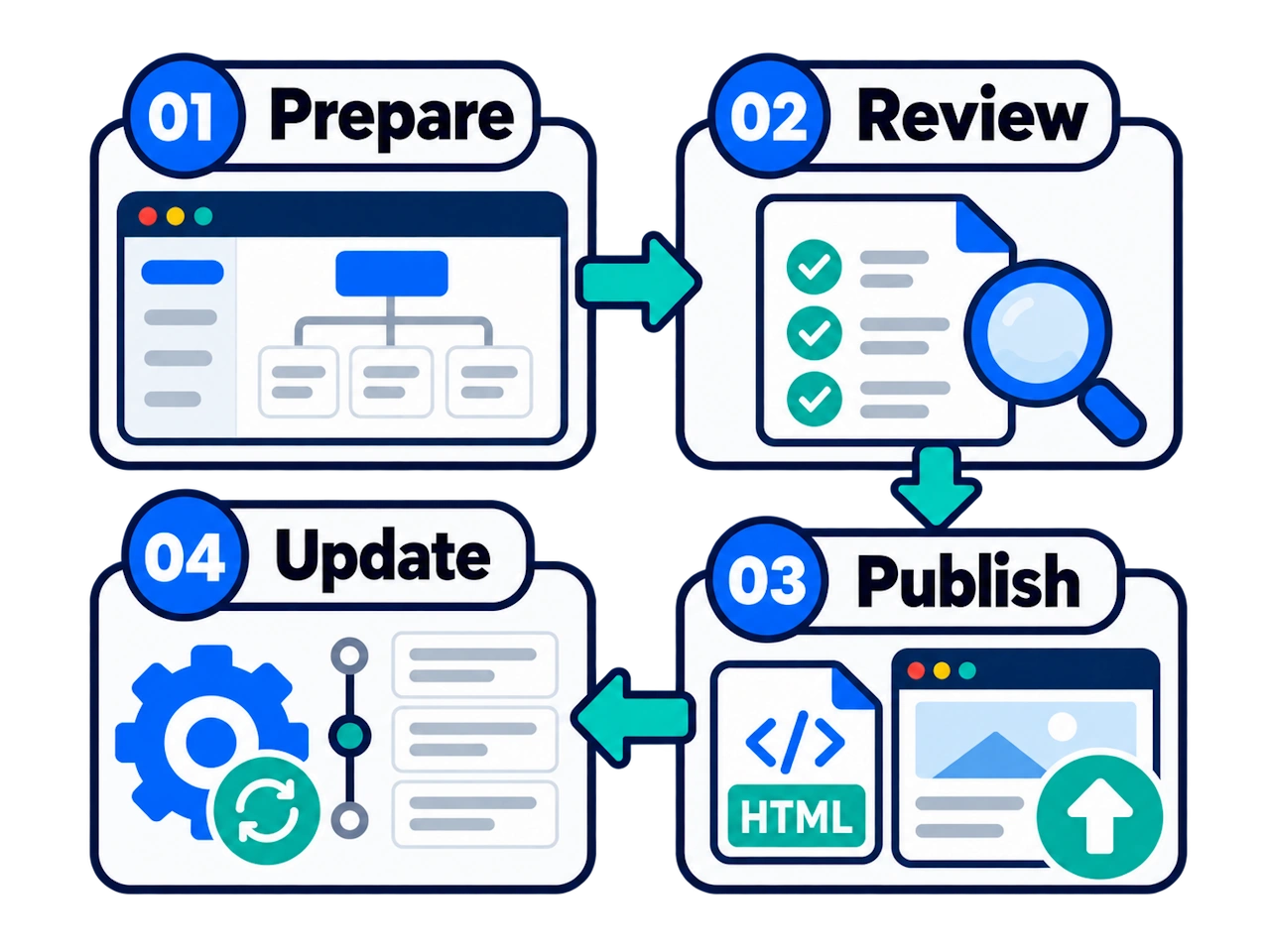
01 Prepare
02 Review
03 Go Live
04 Update
01 · GETTING READY
Start with Your Content, URLs, and Essential Features
These three decisions define what to build and what to check before launch.
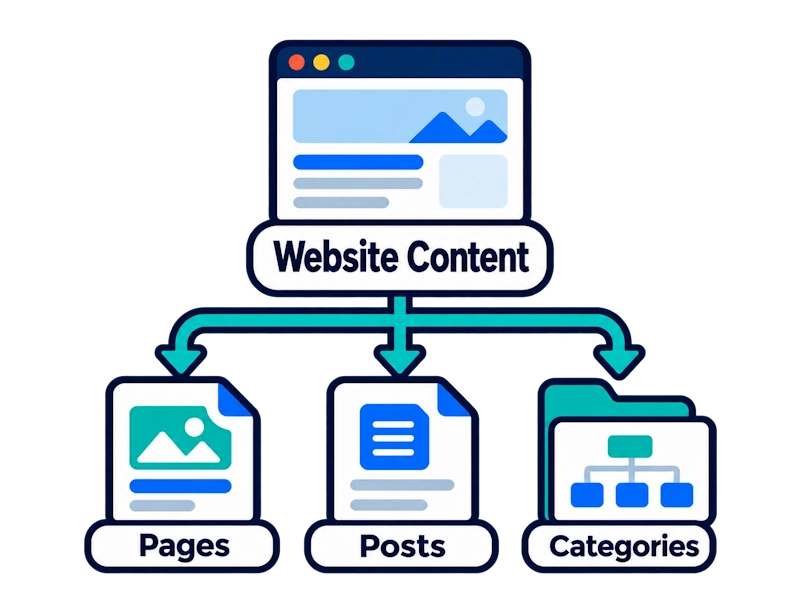
What Will You Publish?
Identify your homepage, content pages, and post listings, along with any content that should stay unpublished for now.
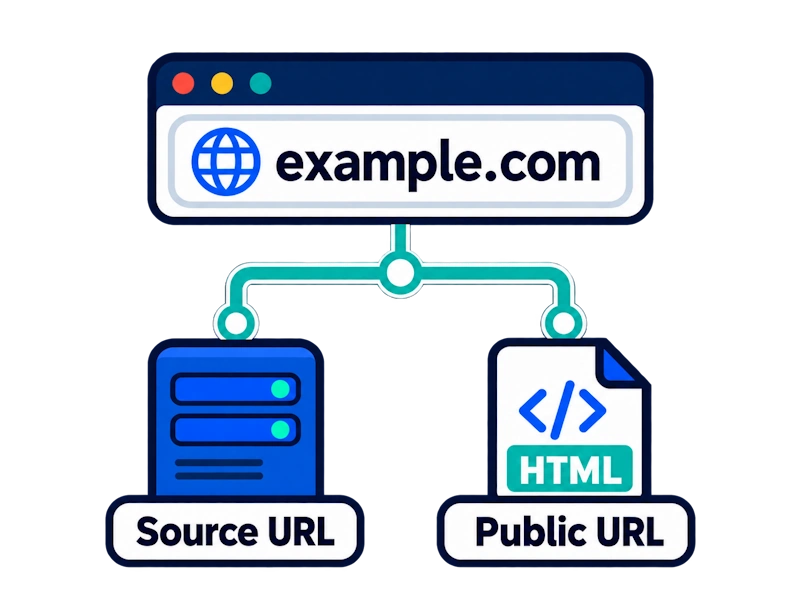
Where Will You Publish?
Confirm your WordPress source URL and public primary domain so asset URLs and links can be rewritten for the right destination.
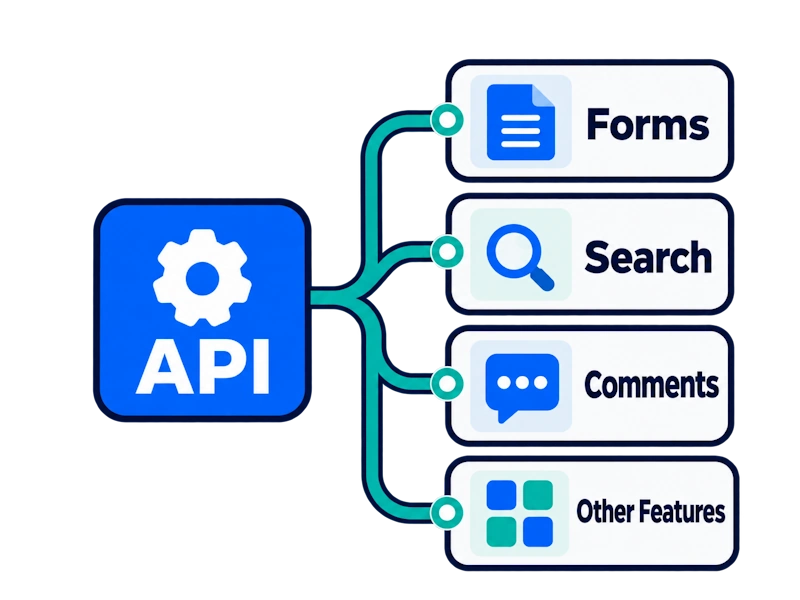
Which Interactive Features Do You Need?
List your forms, search, comments, and APIs. Features that depend on server-side processing need a separate integration review.
02 · BUILD AND REVIEW
Build a Version First.
Then Make Sure It Works.
For an existing site, first export to a safe folder on the same server, outside the WordPress directory. Your original site stays online. For a new site, create a static version for review using the planned CMS and public site URLs.
Check the actual pages and try the interactive features. Identify missing assets, broken links, and features that need integration before deciding whether to deploy.
Generating files does not mean the site is ready to launch. A test export leaves your existing site in place, so it does not yet provide the security benefits of a live static site.
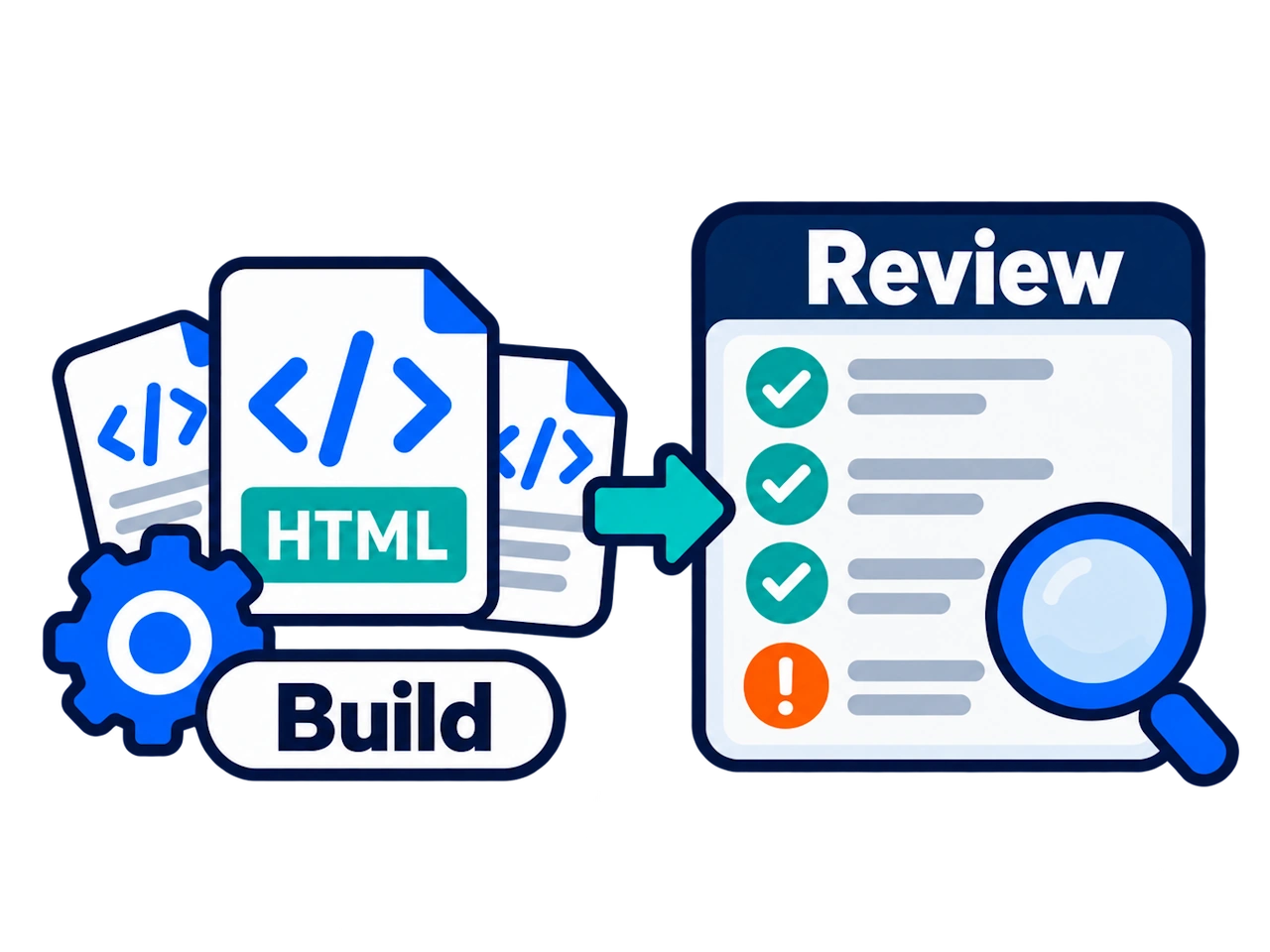
Content and Navigation
Pages are complete, and navigation works.
Images and Styles
Images and Styles
Assets load, fonts render, and layouts display correctly.
JavaScript
Test carousels and tabs by using them.
Links and SEO
Check public URLs, meta descriptions, and canonical URLs.
Forms and Integrations
Verify submission endpoints and responses.
Mobile Layouts
Content is readable on phones and tablets.
03 · GO LIVE
Plan Your Deployment Around Your Starting Point.
For a new site, set up the CMS and public site separately from the start. For an existing site, prepare the migration and cutover first.
New Websites
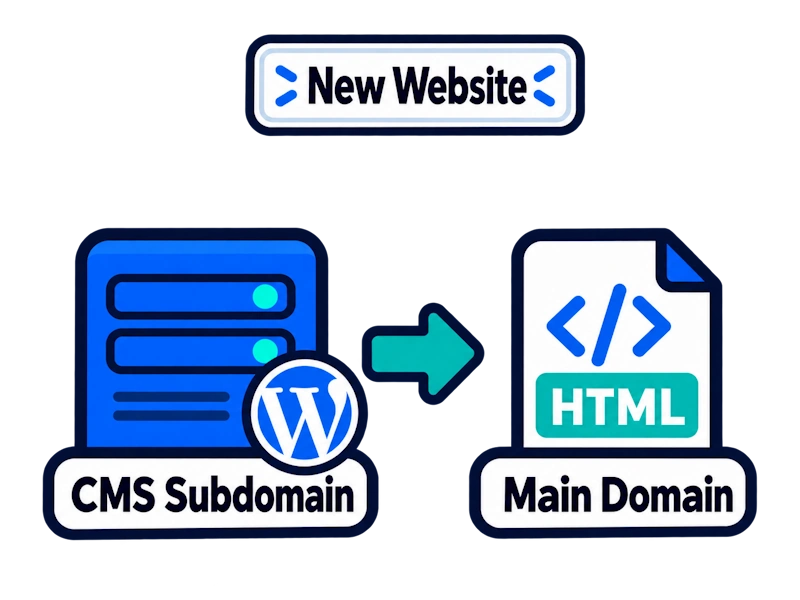
Install WordPress on a CMS subdomain while the primary domain is still empty. Confirm the document root, permissions, and URL settings, then publish the static site to the primary domain.
Existing Websites
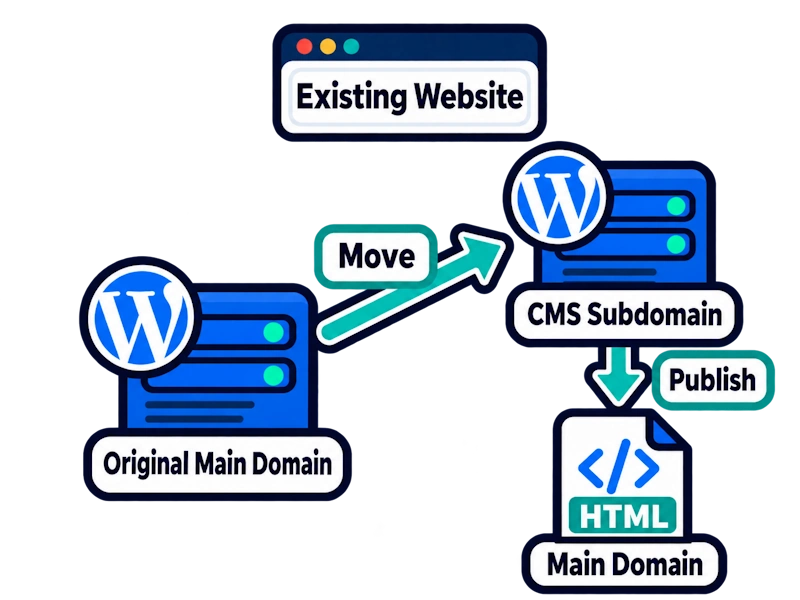
Back up the site and review its URLs and features. Move WordPress to a CMS subdomain, then switch the primary domain to the static site. Have a recovery plan ready before the cutover.
After Publishing:Use the public URL to check key pages, assets, and interactive features. If you use caching or a CDN, confirm that visitors receive the new version. Also review dynamic endpoints and request forwarding on the primary domain.
04 · ONGOING UPDATES
Edit as Usual.
Update Your Public Site Based on Your Setup.
Saving content in WordPress and publishing it to the static site are separate steps. Updates can be manual or automatic.
FREE VERSION · MANUAL PUBLISHING
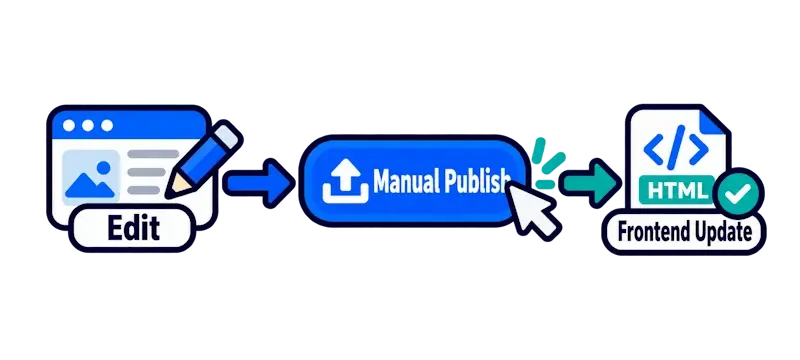
You Start Each Update
After editing your content, manually build a static version, review it, and publish it to your public site.
PAID VERSION · AUTOMATIC UPDATES
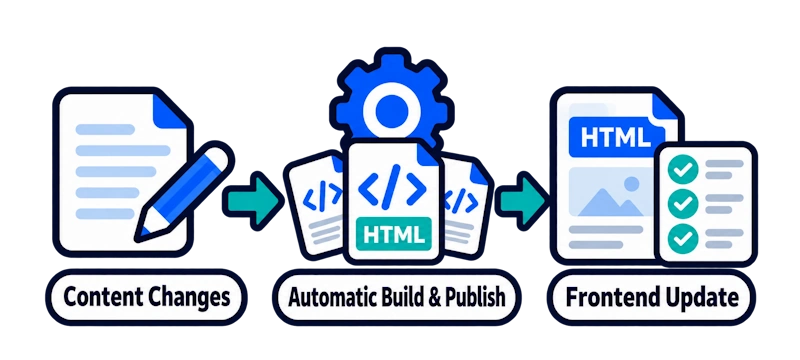
Content Changes Trigger Updates
Once configured, the system builds and publishes the affected static pages when content changes, reducing repetitive work.
COMPATIBILITY AND LIMITATIONS
Which Features Need Additional Work?
A static site works well for websites built primarily around public content. Features that change based on user sessions or real-time data need a separate implementation.
Good Candidates
Business websites, blogs, service pages, portfolios, and event pages.
Integration Review Required
Contact forms, search, comments, REST APIs, and real-time data.
Not Currently Supported
WooCommerce carts and checkout, native WordPress user login, and LMS courses and interactive quizzes.
The security benefits depend on the public primary domain neither processing relevant requests through WordPress dynamic endpoints nor forwarding those requests to them. The CMS still needs updates, backups, and access controls. Forms and third-party services also require ongoing maintenance.
Choose the Right Plan for Your Site.
Explore free test exports and manual deployment for new sites, paid conversion and automatic updates, and an optional new-site setup service.